✓ Royal Mail Authorised Inspector since 2008 | Trading since 2005


SendPro C Auto/Auto+ Reports Support
Pitney Bowes SendPro C Auto / Auto+ · Reports
How to retrieve tracking numbers, run, email and configure account reports, and print funds and piece-count reports on the Pitney Bowes SendPro C Auto and SendPro C Auto+ franking machine.
How do I retrieve a tracking number on the SendPro C Auto / Auto+?
To retrieve a tracking number, run the UK Trackable Items report from Manage Accounts and view or email it.
- From the Home screen, select Envelope Printing.
- Press the account box in the left-hand column and tap Manage accounts. The machine connects to ensure the report is up to date.
- Tap Reports, then View & print reports.
- Scroll to UK Trackable items and select it, then tap Next.
- Change the date range by tapping the box at the top, select Custom, choose your range on the calendars and tap OK.
- Tap View report to display the tracking numbers printed in that period.
- To email it, tap Actions, select Email Report, enter your email address, select a file type and tap Send.
How do I run a postage printing account report on the SendPro C Auto / Auto+?
To run an account report, open Manage Accounts, set the report period if needed, then choose and view the report.
- Tap Manage Accounts on the Home screen.
- Tap the Reports link in the Accounts section.
- If this is your first report, tap Report Period to set the time range and Preferences to set how accounts are identified.
- Tap View & print reports.
- Select a report and tap Next.
- Tap View Report to view it on screen, or Actions to save, delete or email it.
How do I set the report period for an account on the SendPro C Auto / Auto+?
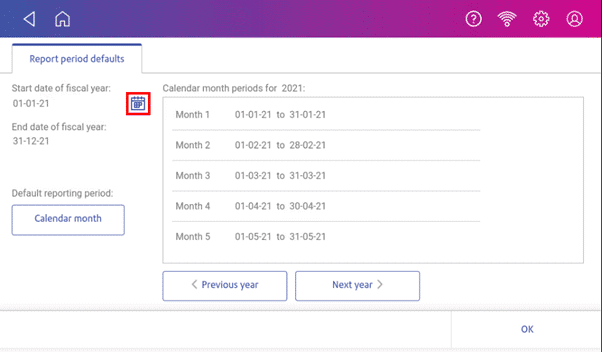
To set the reporting period, open Report period in Manage Accounts and set the start date of the fiscal year.
- Tap Manage Accounts, then Reports, then Report period.
- Select the calendar next to Start date of fiscal year, choose a date and select SET. The end date is set automatically from the start date.
- Select the Default reporting period field, choose a period type and select OK.
- Tap OK to return to the Reports screen.
How do I email an account report on the SendPro C Auto / Auto+?
To email an account report, open the report in Manage Accounts and use Actions > Email Report.
- Tap Manage Accounts, then Got It at the No Sync Required prompt.
- Tap Reports, then View & print reports.
- Select the report and tap Next.
- Tap Actions, then Email Report.
- Enter the recipient email address (it remains saved until you turn the device off and on).
- Tap the file type to send: xlsx, csv or pdf.
- Tap Send (the report arrives from no-reply@pb.com), then OK when Email Sent appears.
How do I set the account report preferences on the SendPro C Auto / Auto+?
To set report preferences, choose the account level and how accounts are identified in Reports > Preferences.
- Tap Manage Accounts, then Reports, then Preferences.
- Select how to identify accounts: by Name or by Code.
- Select the account level to report on: Account, Sub account or Sub sub account.
- Tap OK to return to the Reports screen.
How do I print a funds report on the SendPro C Auto / Auto+?
The funds report shows the funds used and available, total pieces, control sum, batch count and value, and the PBI serial number. To print it, open the piece count in Envelope Printing.
- Tap Envelope Printing on the Home screen.
- Tap the piece count in the upper right.
- Tap Print Report, then Envelope Printer.
- Feed an envelope through the machine.
How do I print a report for the number of mail pieces sent on the SendPro C Auto / Auto+?
- Tap Envelope Printing on the Home screen.
- Tap the Pieces button in the Mail screen.
- Tap Print Report, then Envelope Printer.
- Feed the envelope through the machine — a funds report prints showing the total number of pieces sent.
SendPro C Auto / Auto+ Reports – Frequently Asked Questions
How do I find a tracking number on the SendPro C Auto / Auto+?
Run the UK Trackable Items report from Manage Accounts > Reports > View & print reports, set your date range and tap View report to see the tracking numbers, or email it to yourself via Actions.
What file types can I email reports as?
You can email account reports as xlsx (Excel), csv or pdf. They are sent from no-reply@pb.com.
Still having trouble with SendPro C Auto / Auto+ reports?
Our technical team are Royal Mail Authorised Inspectors and fully qualified franking machine engineers. Call us on 01543 572 776 – Mon–Fri 9:00 to 17:00.