✓ Royal Mail Authorised Inspector since 2008 | Trading since 2005


SendPro C Scales Support
Pitney Bowes SendPro C · Scales
How to install, zero, reset, replace and troubleshoot the scale on the Pitney Bowes SendPro C franking machine, including entering weight manually, using an external scale and scale stabilisation.
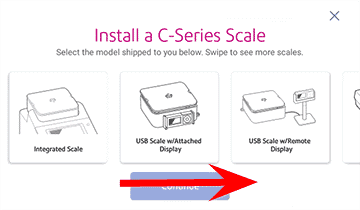
How do I install a scale on the SendPro C?
To install a scale, open the Scale Installation Guides in Settings and follow the on-screen steps for your scale.
- Tap the Settings (gear) icon in the global toolbar.
- Scroll to the bottom and tap Scale Installation Guides under Advanced Options.
- Swipe left to view all available scales.
- Tap to select your scale, then tap Continue.
- Follow the on-screen instructions, swiping left to advance each step.
How do I zero the scale on the SendPro C?
To zero the scale, open the weight box in Envelope Printing and select Zero scale.
- From the Home screen, select Envelope Printing.
- Tap into the scale box where the weight is showing.
- Tap the Scale option.
- Tap Zero scale, then Cancel. The scale is now set to zero and ready for an item.
How do I reset the scale on the SendPro C?
To reset the scale, zero it from the weight box in Envelope Printing.
- From the Home screen, select Envelope Printing.
- Tap into the scale box where the weight is showing.
- Tap the Scale option, then Zero scale, then Cancel. The scale is reset to zero and ready for an item.
How do I replace the scale on the SendPro C?
To replace the scale, remove the old unit, unpack the new one (removing all foam), and fit it onto the machine.
- Remove the old scale unit from the machine.
- Open the new scale box and remove all foam, including the pink piece in the middle.
- Place the grey plate back onto the scale once the foam is removed.
- Place the new scale onto the machine, making sure the connector sits down correctly.
How do I fix scale issues on the SendPro C?
To fix scale issues, re-seat the scale and test it with a known item.
- Remove the scale.
- Place it back on securely.
- Add an item to the scale to test it is working.
How do I enter weight manually for Envelope Printing on the SendPro C?
Use this when you know the weight and are not using the integrated weighing platform.
- Tap Envelope Printing on the Home screen.
- Tap the weight button, then Manual.
- Tap the kg option and enter the kilograms, then the grams option and enter the grams.
- Tap Apply.
- Tap Class (select Start Over if needed), select the class, package/envelope type and any special services, then tap Apply.
- Feed the envelope through the machine.
How do I use the weighing platform for Envelope Printing on the SendPro C?
- Tap Envelope Printing on the Home screen.
- Tap the weight button, then Scale.
- Place the envelope on the weighing platform (you must do this before the next step, or Apply stays inactive).
- Tap Apply.
- Tap Class, select the class and any special services, then tap Apply.
- Place the envelope(s) on the feed deck and feed them manually or tap Start, depending on your model.
How do I install an external scale on the SendPro C?
An external scale is useful for high volumes of parcels. To install one, fit the blanking plate, run the Scale Installation Guide and connect the scale by USB.
- If using the scale on top of the device, lift it off to remove it.
- Fit the blanking plate where the scale was located.
- Tap Settings, scroll down and tap Scale Installation Guides.
- Swipe left, select the scale you are installing and tap Continue.
- Follow the steps to unbox the scale, then position and level it — adjust the round feet until the level bubble sits inside the circle.
- Connect the large end of the USB cable to the device and the other end to the scale.
- Tap Continue, then Verify, then Got It.
- Tap Envelope Printing, tap the Weight icon, then Scale, place mail on the scale and tap Apply.
How do I use Scale Stabilisation on the SendPro C?
If your device is near an air-conditioning unit, fan, draught or an unstable surface, enable Scale Stabilization for more accurate readings.
- Tap the Settings (gear) icon.
- Scroll to the Advanced Device Options section.
- Tap Scale Stabilization, then Enhanced.
- Tap the back arrow to return to the Home screen.
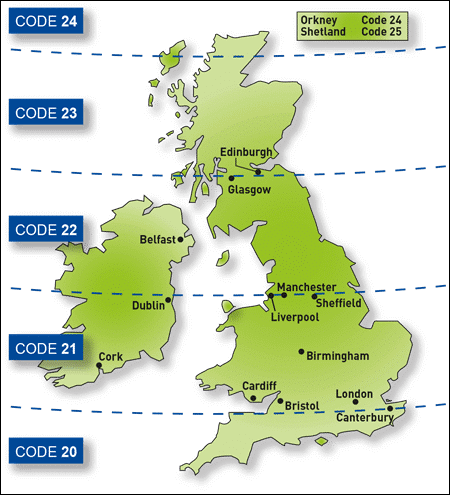
How do I adjust the scale location code on the SendPro C?
- Tap the Settings (gear) icon.
- Tap Location & Time Zone.
- Check the location code is correct.
- Tap Apply to confirm.
SendPro C Scales – Frequently Asked Questions
How do I zero the scale on the SendPro C?
In Envelope Printing, tap the scale box showing the weight, tap Scale, then Zero scale and Cancel. The scale resets to zero ready for an item.
Why is my SendPro C scale weighing inaccurately?
Re-seat the scale and test with a known item. If the device is near a fan, draught or unstable surface, enable Scale Stabilization (Enhanced) in Settings.
Can I use an external scale with the SendPro C?
Yes. Lift off the top scale, fit the blanking plate, run the Scale Installation Guide, level the external scale and connect it by USB.
Still having scale problems with your SendPro C?
Our technical team are Royal Mail Authorised Inspectors and fully qualified franking machine engineers. Call us on 01543 572 776 – Mon–Fri 9:00 to 17:00.