✓ Royal Mail Authorised Inspector since 2008 | Trading since 2005


SendPro+ Common Errors Support
Pitney Bowes SendPro+ · Common Errors
How to fix common problems on the Pitney Bowes SendPro+ franking machine, including BA00/RA00/18FF errors, franking and international mail, sealing and moistener issues, tape and feeder jams, the display, and a blank or frozen screen.
How do I fix connection error codes (1811-1870, 51, 23, 200D) on the SendPro+?
These codes mean the machine cannot connect to the Data Centre. Tap Settings and Sync Transaction Data, then restart the machine. If it still fails, follow our SendPro+ Connection Support guide for your connection type.
How do I fix a BA00 or BA05 error on the SendPro+?
BA00 or BA05 means the machine base is disconnected from the tablet. To fix it, disconnect the network and reboot.
- Unplug the Ethernet cable, or for Wi-Fi turn Wi-Fi off in Settings > Wi-Fi.
- Unplug the power cable and wait five minutes (the screen turns off after 10 seconds). If the tablet does not power off, reboot and retry the sequence, or leave it unplugged overnight to let the battery die, then power up the next day.
- Plug the power back into a wall outlet and tap the power button.
- Tap Envelope Printing.
Note: The print carriage should make a grinding or purring noise during reboot. If there is no noise, or the power light flashes afterwards, contact us. Once resolved, reconnect the Ethernet cable or turn Wi-Fi back on.
If the issue persists, contact us on 01543 572 776 with your model and serial number ready.
How do I fix RA00, DL00, DL01 or RA09 errors on the SendPro+?
These errors mean the base could not initialise the rates manager (or the machine is not on the account) and it will not print. To fix it, refresh the postage balance, reboot and run Rates & Updates.
- Tap Envelope Printing, then Postage Balance, and wait for “Last Update: Just Now”.
- Unplug the power cable for 10 seconds, plug it back into a wall outlet and tap the power button.
- Tap the double-headed arrow on the application drawer to expand it, then tap Rates & Update.
If the issue persists, contact us on 01543 572 776 with your model and serial number ready.
How do I fix an 18FF error on the SendPro+?
Error 18FF means some transactions failed to synchronise. To fix it, restart the device, then sync the transactions.
- Unplug the power cable.
- Wait for the display to turn off (about 10 seconds), then wait one minute.
- Plug the power cable directly into a wall outlet.
- Quickly tap and release the power button to turn the device back on.
Then tap Settings > Envelope Printer Settings > Sync Transaction Data and wait for “Transaction Data Sent” (or “No Sync Required”).
Note: If you have to sync more than three times, contact us on 01543 572 776.
How do I frank a letter on the SendPro+?
To frank a letter, select your class and size in Envelope Printing, weigh the item and feed it through.
- Tap Envelope Printing.
- Select the class box on the right and tap Start over.
- Select the service you require. For 1st or 2nd Class, select the size using your Mailcoms PIP ruler (or select Royal Mail Signed For first if needed).
- Tap Apply.
- Place the item on the scale to confirm the price, then feed the envelope or label through when the machine shows ready to print.
How do I check for updates on the SendPro+?
- From the Home screen, tap SendPro Apps.
- Tap Rates & Updates. The machine connects and downloads any available files.
How do I process an international item on the SendPro+?
To process international mail, select International in Envelope Printing, choose the service and destination, then weigh and print.
- Tap Envelope Printing, select the class box and tap Start over.
- Select International and choose the service you need (different countries offer different services — if the country does not appear, try another service).
- Select the size using your Mailcoms PIP ruler, then enter the destination country.
- If prompted, tick the box for additional compensation, then tap Apply.
- Place the item on the scale to confirm the price, then feed the envelope or label through.
How do I fix a “Shared Services has stopped working” message on the SendPro+?
This message means the software has encountered an error and the machine will not print. Restart the machine to clear it.
- Unplug the power cable.
- Wait for the display to turn off (about 10 seconds), then wait one minute.
- Plug the power cable directly into a wall outlet.
- Quickly tap and release the power button to turn the device back on.
If the issue persists, contact us on 01543 572 776 with your model and serial number ready.
How do I seal envelopes on the SendPro+?
To seal envelopes, make sure the moistener tank has sealant and slide the envelope flap under the edge of the feed deck so the moistener wets the flap. To seal without printing postage, use Seal Only mode.
- Tap Envelope Printing.
- Tap Print Mode (swipe up if needed) and select Seal Only, then Apply.
- Place the envelope face up, flap down, sliding the flap under the edge of the feed deck.
How do I fix envelopes not sealing on the SendPro+?
Sealing problems are usually caused by low sealant, incorrect envelope feeding, or a dry or dirty moistener brush/wick.
- Slide the envelope flap under the edge of the feed deck so the moistener can wet it.
- Check the sealant level in the sight glass on the left of the moistener tank. If low, add sealing solution up to the bottom of the fill hole (do not overfill). If it was empty, allow 30 minutes for the brush and wick to wet.
- If the brush is dry, check the white thumbscrews under the sealer are tight, wet the brush manually, and make sure it contacts the wick (lift the wick slightly if needed). If the brush dries out quickly, replace the wick.
- If the brush is dirty, remove it, clean it in plain water and rinse thoroughly.
How do I fill the moistener tank on the SendPro+?
To fill the moistener tank, add sealing solution up to the bottom of the fill hole.
- Check the level of sealing solution in the moistener tank.
- Add sealing solution up to the bottom of the fill hole (do not overfill).
- If the tank was empty, allow 30 minutes for the brush and wick to saturate.
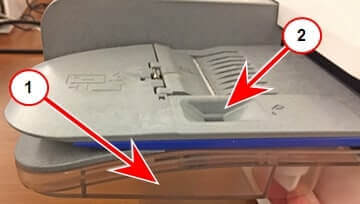
How do I clean the moistener brush and wick on the SendPro+?
If the tank is full but envelopes are not sealing, clean the moistener brush and wick.
- Unscrew the plastic thumbscrew under the moistener base and lift the brush assembly off.
- Turn the assembly over and slide the brush out of the holder.
- Remove the metal grate and wick from the moistener base.
- Clean the brush and wick in plain water and rinse thoroughly.
- Replace the wick in the metal grate and into the base, refit the brush in the holder, replace the assembly and secure with the thumbscrew.
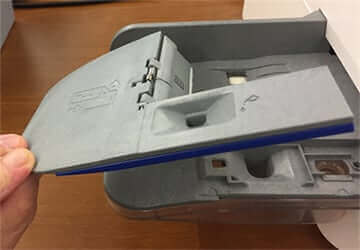
How do I adjust the display brightness on the SendPro+?
- Tap the Settings (gear) icon.
- Tap Display Brightness in the Device & Network section.
- Move the slider, then tap Back or Home to exit.
How do I reset the piece count on the SendPro+?
- Tap Envelope Printing.
- Tap the Pieces button.
- Tap Reset Counter to 0.
Note: The deleted piece count cannot be restored.
How do I adjust the time zone and location code on the SendPro+?
Update these if you move the machine to a new region or fit a different scale.
- Tap the Settings (gear) icon, then Location & Time Zone.
- Enter the new Location Code (see the list provided with your scale) and the Time Zone.
- Tap Apply.
How do I upload system logs on the SendPro+?
Technical support may ask you to upload system logs.
- Tap Settings, scroll to Advanced Device Options and tap System Log Upload.
- Select the logs you want, tap Upload Selected Logs, then OK and Got It when complete.
How do I fix a blank, black or frozen screen on the SendPro+?
A blank or black screen usually means the machine is off or has no power. If it is frozen on a black or blank screen (or the Pitney Bowes logo), leave it plugged in and powered on for an hour to see if it resolves. If not, contact us.
How do I fix a flashing power light on the SendPro+?
A flashing power light usually means the power button was held down too long. Restart the machine: unplug the power, wait five minutes, plug back into a wall outlet and tap the power button.
Tips: To turn the machine on, just tap the power button — do not hold it. To turn it off, hold the power button for only 5 seconds.
How do I advance the date on the SendPro+?
Advance the date to print postage up to thirty days before sending.
- Tap Envelope Printing, then tap the date to open the calendar.
- Tap Tomorrow or another date.
- Tap Apply, then feed your envelopes.
Note: The printed date should match the date your mail goes to the Post Office. The device automatically advances the date at 5:00 PM, and this time cannot be changed.
How do I clean the printer nozzles on the SendPro+?
If a test print is poor quality, clean the print head nozzles.
- Tap Settings, scroll to Envelope Printer Settings and tap Envelope Printer Maintenance.
- Tap Clean Printhead, then print another test pattern. If lines are still broken or missing, you may need to replace the ink cartridge or print head.
How do I fix a Tape Transport error on the SendPro+?
A “Tape Transport error” means a tape or franking label is stuck. To fix it, remove the stuck tape and refit the roll.
- Remove the tapes/franking labels from the tape slot.
- Turn the paper jam lever clockwise to drop the deck and remove the tape.
- Turn the jam lever back to the locked position.
- Replace the tapes in the slot on top of the feeder, printable side facing right (toward the touchscreen), then tap Tape.

How do I clear a “Problem with the Feeder” on the SendPro+?
This is usually an envelope jam in the feeder. To clear it, open the feeder and release the jam lever.
- Open the feeder cover.
- Lift the jam release lever and move it left until it clicks.
- Pull the envelope slightly left, then out the front.
- Move the lever back, close the cover, load the mail properly and check the moistener lever, then tap Start.

How do I track a parcel on the SendPro+?
- Tap Shipping History in the application drawer.
- Find the parcel in the list and note its tracking number.
- Enter the tracking number on the Royal Mail or Parcelforce website.
SendPro+ Common Errors – Frequently Asked Questions
How do I safely restart my SendPro+?
Unplug the power cable, wait for the display to turn off and then one minute (five minutes for some errors), plug directly into a wall outlet and tap the power button. This clears many errors.
Why are my envelopes not sealing?
Check the sealant level and top up the moistener tank, slide the envelope flap under the edge of the feed deck, and clean or replace the moistener brush and wick if needed.
What does a BA00 error mean?
The machine base has disconnected from the tablet. Disconnect the network, power the device fully off for five minutes, then restart and open Envelope Printing.
Still experiencing issues with your SendPro+?
Our technical team are Royal Mail Authorised Inspectors and fully qualified franking machine engineers. Call us on 01543 572 776 – Mon–Fri 9:00 to 17:00.