✓ Royal Mail Authorised Inspector since 2008 | Trading since 2005


Downloading & Installing PC Meter Connect
Franking Machine Support · PC Meter Connect
How to download and install PC Meter Connect software for the first time, or update an existing installation, for Mailcoms and Pitney Bowes franking machines.
Which franking machines support PC Meter Connect?
PC Meter Connect is supported on the following Mailcoms and Pitney Bowes franking machines.
Mailcoms machines: Mailstart, Mailstart+, Mailsend Lite, Parcelsend Lite, Mailbase Lite, Mailbase, Mailbase Pro, Mailbase+ and Mailbase Speed.
Pitney Bowes machines: DM60, DM100i, DM110i, DM160i, DM220i, DM300M and DM400M.
What are the PC Meter Connect system requirements?
To run PC Meter Connect, your Windows PC must meet the following minimum requirements.
- Windows 8, 10 or 11 with the latest service packs (32-bit and 64-bit supported)
- 1.2 GHz processor, 512 MB RAM minimum
- Active internet connection
- Microsoft .NET Framework 4.5 (installed automatically if not present)
- Available USB port
- Administrator rights to install software
Important: PC Meter Connect is Windows-only. Mac, Linux and other non-Windows operating systems are not supported.
How do I install PC Meter Connect for the first time?
To install PC Meter Connect for the first time, sign in as an administrator, unplug the meter, download the setup file and run it, then reconnect the meter. These instructions are for users who have never installed PC Meter Connect on this computer.
- Check system requirements — Confirm your Windows PC meets the requirements above.
- Get ready
- Sign in to your computer with administrator privileges.
- Place your computer near your franking machine so you can connect them with a USB cable.
- Unplug the USB cable from your meter and computer.
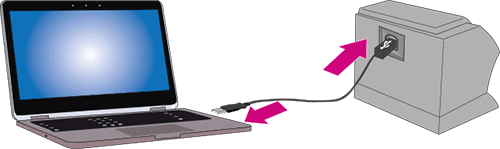
- Unplug the power cord from the back of your meter.

- Download PC Meter Connect — Click the button below to download the setup file to your computer.
- Install PC Meter Connect
- Go to your Downloads folder and double-click the setup.exe file to start installation.
- Plug your USB cable back into your meter and computer.
- Follow the on-screen installation prompts.
- Once installation is complete, plug the power cord back into your meter.
How do I update PC Meter Connect to the latest version?
To update PC Meter Connect, exit the running application, unplug the meter, download the latest setup file and run it, then reconnect the meter. Use these steps if you already have PC Meter Connect installed.
- Check system requirements — Confirm your Windows PC meets the requirements above.
- Get ready
- Sign in to your computer with administrator privileges.
- Place your computer near your franking machine so you can connect them with a USB cable.
- Right-click the PC Meter Connect icon in the system tray and select Exit.
- Unplug the USB cable from your meter and computer.
- Unplug the power cord from the back of your meter.
- Download the latest PC Meter Connect — Click the button below to download the setup file.
- Install the update
- Go to your Downloads folder and double-click the setup.exe file.
- Plug your USB cable back into your meter and computer.
- Follow the on-screen installation prompts.
- Once installation is complete, plug the power cord back into your meter.
PC Meter Connect – Frequently Asked Questions
Does PC Meter Connect work on Mac or Linux?
No. PC Meter Connect is Windows-only software. Mac, Linux and other non-Windows operating systems are not currently supported.
Do I need administrator rights to install PC Meter Connect?
Yes. You must be signed in to Windows with administrator privileges that allow you to install software. If you do not have these rights, contact your IT department.
What version of Windows does PC Meter Connect support?
Windows 8, 10 and 11 with the latest service packs. Both 32-bit and 64-bit hardware are supported.
Why do I need to unplug my meter before installing PC Meter Connect?
Unplugging the USB cable and power cord before installation ensures Windows detects the meter as a new device when reconnected, which prevents driver conflicts during installation.
Still having trouble with PC Meter Connect?
Our technical team are Royal Mail Authorised Inspectors and fully qualified franking machine engineers. Call us on 01543 572 776 – Mon–Fri 9:00 to 17:00.