✓ Royal Mail Authorised Inspector since 2008 | Trading since 2005


SendPro Mailstation Connection Support
Pitney Bowes SendPro Mailstation · Connection
How to connect the Pitney Bowes SendPro Mailstation franking machine to your network, set up wired, wireless and proxy connections, find the MAC address and resolve connection problems, plus the IT networking requirements.
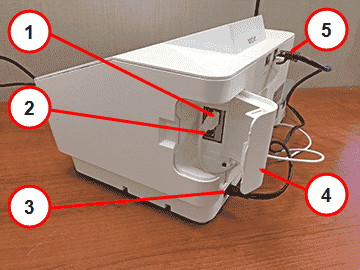
What are the connections on the back of the SendPro Mailstation?
The back of the device has the following connections:
- USB port (type A) for the external scale.
- USB port (type B) — inactive, supports no devices.
- AC power cable connection (use only the provided cable).
- USB port cover.
- RJ45 (Ethernet) port for a LAN connection.
How do I set up a wired network connection on the SendPro Mailstation?
Set up a wired connection when you connect the device to your network with an Ethernet cable.
- Tap Settings, tap the right arrow to the next page, then tap Network Settings.
- Tap Change Network Settings, then Wired.
- Tap Advanced Network Options, then Continue.
How do I set up a wireless (Wi-Fi) connection on the SendPro Mailstation?
- Tap Settings, tap the right arrow to the next page, then tap Network Settings.
- Tap Change Network Settings, then Wireless, then Select Wireless Network.
- Choose your Wi-Fi network (tap Join Other Network for a hidden one).
- Enter your Wi-Fi password and tap Next, then Connect, then Continue.
How do I set up a proxy server on the SendPro Mailstation?
- Tap Settings, tap the right arrow, then tap Network Settings > Change Network Settings.
- Select Wireless or Wired (Ethernet). For Wireless, select the network, tick Advanced Options and set the proxy to Manual; for Wired, choose DHCP or Static IP and set the Proxy Setting to Manual.
- Enter the Proxy Hostname and Proxy Port.
- If required, tick Need Authentication and enter the proxy username and password (case-sensitive).
- Tap Next, then Connect, then Continue.
How do I check the MAC address on the SendPro Mailstation?
The device uses separate MAC addresses for wired and wireless connections, both printed on a sticker under the LAN port. To view the current one in use:
- Tap Settings, tap the right arrow to the next page, then tap About Device.
- Tap Network info. The MAC shown matches the current connection type (it is blank if not connected).
How do I fix a wired or wireless connection problem on the SendPro Mailstation?
Connection problems are usually caused by settings, the physical/wireless connection or a firewall.
Step 1 — Restart and check for an IP address
Restart the device (hold the power button until “Shutting Down”, wait 5 seconds, power on). If that fails, hard reboot by unplugging the power for ten seconds. Then check for an IP address via Settings > About Device > Network Info.
Step 2 — Check the connection
For wired: make sure the device is not on a phone line or PC Meter Connect (not supported), the cable is clicked in securely, and the LED lights are on (if off, try the other end in an active router/jack or a different cable). For wireless: check the Wi-Fi signal — below two bars, move the device and access point closer or remove interference.
Step 3 — Check the network settings and firewall
In Settings > Network Settings > Change Network Settings > Advanced Network Options, verify the DHCP/Static IP and proxy settings with your IT department, and make sure your firewall is not blocking the required addresses (see below). If one connection type fails, try the other.
What are the networking requirements for the SendPro Mailstation?
If you have strict network security, your IT team may need these specifications.
Wi-Fi: supports IEEE 802.11b/g/n 2.4GHz and 802.11a/n 5GHz; does not support 802.1X enterprise/domain authentication or public/guest networks with a web login.
Ports: connection uses ports 31314, 993 or 443 (TCP); upgrades use port 80 (TCP/HTTP); data transfers via HTTPS (TLS 1.2).
IP: DHCP is the default; Static IP can be used (IP address, subnet mask, default gateway, primary DNS).
URLs: allow the wildcard *.sl.pb.com, or if that is not possible, allow upgrades.sl.pb.com, imp.sl.pb.com, agent.sl.pb.com and the slpb-us-east-1 boxen.sl.pb.com addresses. Reverse lookups resolve to Amazon AWS servers.
SendPro Mailstation Connection – Frequently Asked Questions
How do I connect the SendPro Mailstation to Wi-Fi?
Tap Settings > Network Settings > Change Network Settings > Wireless > Select Wireless Network, choose your network, enter the password and tap Connect.
Does the SendPro Mailstation support a phone line or PC Meter Connect?
No. It connects via a wired (Ethernet) or wireless (Wi-Fi) network only.
Why won’t my SendPro Mailstation connect?
Restart and hard reboot the device, check the cable lights or Wi-Fi signal, verify your DHCP/Static settings, and make sure your firewall allows the *.sl.pb.com addresses.
Still having connection problems with your SendPro Mailstation?
Our technical team are Royal Mail Authorised Inspectors and fully qualified franking machine engineers. Call us on 01543 572 776 – Mon–Fri 9:00 to 17:00.