✓ Royal Mail Authorised Inspector since 2008 | Trading since 2005


Parcel Shipping Support
Pitney Bowes SendPro C Auto / Auto+ · Parcel Shipping
How to use Parcel Shipping on the Pitney Bowes SendPro C Auto and SendPro C Auto+ to print Royal Mail and Parcelforce labels, manage the address book and cost accounts, create presets, and reprint, refund and track labels.
⚡ Save on supplies
Franking machine ink, labels & supplies
Genuine Mailcoms, Royal Mail approved ink, labels and supplies for your franking machine - quality you can trust at Mailcoms prices. Free UK delivery on orders over £40.
How do I sign in to and out of Parcel Shipping on the SendPro C Auto / Auto+?
To use Parcel Shipping you must sign in to your shipping account; sign out to prevent unauthorised printing when away from the device.
- Tap Parcel Shipping on the Home screen and enter your name and password to sign in.
- To sign out, tap the user profile icon in the upper-right of the toolbar and select Sign out.
How do I set the label options for Parcel Shipping labels?
Enable label options to see the label options screen while printing.
- Tap Settings on the toolbar.
- Tap Label Options in Shipping Settings.
- Tick the label options screen before printing box.
- Tap the back arrow to return.
How do I use the Parcel Shipping address book on the SendPro C Auto / Auto+?
Store commonly-used addresses in the address book so you do not have to enter them manually. The address book holds up to 1000 addresses. Open it via Address Book in the application drawer at the bottom of the Home screen.
Add an address
- Tap Address Book, then Recipients (or Senders).
- Tap the + icon and enter the address.
- Tap Save.
Add a new sender address
- Tap Address Book, tap Recipients and select Senders.
- Tap +, enter the sender information and tap Save.
Edit an address
- Tap Address Book and tap the address (for a sender, tap Recipients and select Senders first).
- Tap the Edit icon, make your changes and tap Update (or Save).
Search addresses
- Tap Address Book and type part of the contact (name, company, street) in the search field.
- Tap Sort by to sort the results. Select an address and tap Print shipping label to print.
Delete an address
- Tap Address Book, select the address, tap the Delete icon and tap Delete to confirm.
Note: You cannot restore a deleted address.
How do I add or manage a Parcel Shipping cost account on the SendPro C Auto / Auto+?
Create cost accounts to record Parcel Shipping usage by department. You can modify but not delete a cost account, and you must create at least one to use the feature.
Add a cost account
- Tap Shipping Cost Accounts in the application drawer.
- Tap the + in the upper-left of the Cost Accounts screen.
- Enter an account name (up to 20 characters) and tap the green tick.
- (Optional) Enter a description (up to 200 characters).
- Tap Active or Inactive, and tick Make this my default Cost Account if required.
- Tap Apply.
Modify a cost account
- Tap Shipping Cost Accounts, tap the account and tap the Edit icon.
- Change the status, default setting or description, then tap Apply.
Turn cost accounts on or off
- Tap Shipping Cost Accounts, then the Preferences icon.
- Tap the slider so it turns blue (ON), optionally tick Require cost account for all shipments; tap the slider grey to turn it off.
- Tap Apply.
How do I set a transaction limit for Parcel Shipping labels?
Set a transaction limit to prevent labels printing over a certain amount. You must be logged in as an Administrator.
- Tap Settings, then Label Options in Shipping Settings.
- Tap the Admin option.
- Tick Set a maximum transaction limit for all users.
- Enter an amount above £0.10, then tap Apply and the back arrow.
How do I create a Parcel Shipping preset on the SendPro C Auto / Auto+?
Create presets to store commonly-used parcel attributes such as weight, dimensions, carrier and class. You can create up to eight presets.
- After printing a label, it appears in the Recents screen of Parcel Shipping.
- Tap the star on the label.
- Enter a name in the Name Preset field, tap the green tick, then Save.
How do I print a Parcel Shipping label on the SendPro C Auto / Auto+?
Print Parcel Shipping labels to get the best pricing for Royal Mail and Parcelforce parcel services.
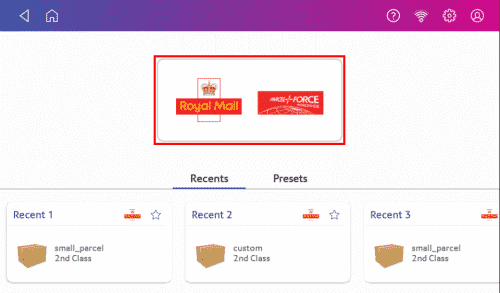
- Tap Parcel Shipping on the Home screen, then Royal Mail and ParcelForce.
- Add the sender address (use the address book icon or enter it manually) and select a cost account if enabled, then tap Continue.
- Tap the Address icon to select the recipient from the address book, or enter a postcode and choose the address (tick Save contact to save it), then tap Continue.
- Enter the parcel dimensions in centimetres, then tap the Weight button and either tap Scale and place the parcel on the scale, or enter the weight manually. Tap Apply, then Continue.
- Tap the service you want (for example 1st Class).
- Tap Extra Services if required, select the service and tap Apply.
- Tap the Label Options icon to add a memo if needed, then tap Print.
How do I print a Parcel Shipping label from the address book?
- Tap Address Book in the application drawer.
- Find and tap the address to open it.
- Tap Print shipping Label at the bottom-right.
- Follow the steps for printing a Parcel Shipping label.
How do I reprint a Parcel Shipping label on the SendPro C Auto / Auto+?
If a label does not print correctly, you can reprint it from your shipping history.
- Tap Shipping History in the application drawer.
- Find your label (listed by date) and tap it to open the details.
- Tap Reprint Label.
- Tick the box to confirm you will not use the label multiple times, then tap Reprint.
How do I get a refund or cancel a Parcel Shipping label on the SendPro C Auto / Auto+?
Void a Parcel Shipping label to cancel it — the funds are re-credited to your Purchase Power account. You have up to fourteen days after printing to void a label.
- Tap Shipping History in the application drawer.
- Find your label and tap it to open the details.
- Tap Void Label.
- Tick the box to accept the terms and conditions, then tap Continue. The status will read Refund Requested.
How do I email tracking numbers for Parcel Shipping labels?
Email a tracking number automatically for each new label.
- Tap Settings, then Automated Emails in Shipping Settings.
- Tick Send tracking emails to recipients and/or Send tracking emails to myself (or the sender).
- (Optional) Enter a subject line, then tap the back arrow.
What Parcel Shipping tasks need the Online Shipping Account?
Some Parcel Shipping tasks must be done in your Online Shipping Account rather than on the franking machine. In a browser, go to app-uk.shipping360.pitneybowes.com and sign in with your franking machine user ID and password. Tasks that require the Online Shipping Account include importing and exporting addresses, history and cost accounts; modifying and deleting presets; and managing or inviting users and viewing multi-locations (on a multi-user subscription).
SendPro C Auto / Auto+ Parcel Shipping – Frequently Asked Questions
How do I print a parcel label on the SendPro C Auto / Auto+?
Tap Parcel Shipping, then Royal Mail and ParcelForce, add the sender and recipient addresses, enter the dimensions and weight, choose a service and any extra services, then tap Print.
How do I cancel a parcel label I have already printed?
Tap Shipping History, open the label, tap Void Label and accept the terms. The funds are re-credited to your Purchase Power account, and you have up to 14 days to void.
How many addresses can the Parcel Shipping address book hold?
The Parcel Shipping address book holds up to 1000 addresses.
Still having trouble with Parcel Shipping?
Our technical support team can help with your SendPro C, label printing and online shipping account. Call Mailcoms on 01543 572 776 – Mon–Fri 9:00 to 17:00.