✓ Royal Mail Authorised Inspector since 2008 | Trading since 2005


Mailbase Waste Tank Support
Mailcoms Mailbase · Waste Tank
How to clear the Waste Tank Nearly Full and Waste Tank Full messages on the Mailcoms Mailbase, including resetting the waste tank and turning the waste pad.
What does ‘Waste Tank Nearly Full’ mean on the Mailbase?
The waste tank collects excess ink from print head cleaning. When it shows ‘Waste Tank Nearly Full’, select Clear & Continue to keep working. When the message changes to ‘Waste Tank Full’, follow the steps below.
How do I clear ‘Waste Tank Full’ on the Mailbase?
A full waste tank can stop the machine printing. Check and turn the waste foam, then reset the waste tank counter.
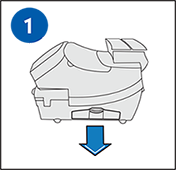
- Remove the ink tray from the right side of the machine.
- Check the waste foam. If it is less than 50% full, flip it 180 degrees so the white side faces up. If it is more than 50% full, leave it in place – you can clear the message but should contact Technical Support for a replacement foam.
- Replace the ink tray into the machine.
- Select Options, press Page Down twice, then select Advanced Features.
- Select Maintenance Mode, then Printer Maintenance.
- Press Page Down, then select Reset Waste Tank.
- Press Yes/Enter at ‘Reset the Waste Ink Tank flag’.
- Enter the code 9287 and select Continue.
- Select Press to Restart when ‘Waste Ink Tank Flag is Reset’ appears, then wait while the machine initialises and returns to the Home screen.
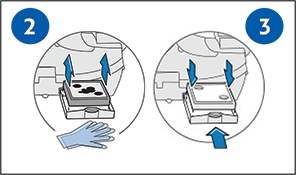
How do I check or turn the waste pad on the Mailbase?
- Pull out the tray on the right-hand side of the machine, towards the back.
- Inspect the pad to see if it is full.
- If the opposite corner is clean, turn the pad and reinsert it.
- If you have a new pad, remove the inner tray and replace it.
- Push the tray back into place.
Mailbase Waste Tank – Frequently Asked Questions
What does Waste Tank Nearly Full mean on the Mailbase?
The waste tank is filling with excess ink from print head cleaning. Select Clear and Continue to keep working until it shows Waste Tank Full.
How do I reset the waste tank on the Mailbase?
After turning the waste foam, go to Options, Advanced Features, Maintenance Mode, Printer Maintenance, Reset Waste Tank, then enter the code 9287 and restart.
Do I need a new waste foam for my Mailbase?
If the foam is more than 50% full you can turn it once, but you should contact Technical Support to order a replacement foam.
Still having waste tank issues with your Mailbase?
Our technical team are Royal Mail Authorised Inspectors and fully qualified franking machine engineers. Call us on 01543 572 776 – Mon–Fri 9:00 to 17:00.