✓ Royal Mail Authorised Inspector since 2008 | Trading since 2005


DM110i/DM160i/DM220i Waste Tank Support
Pitney Bowes DM110i / DM160i / DM220i · Waste Tank
How to resolve Waste Tank Nearly Full and Waste Tank Full messages on the DM110i, DM160i and DM220i, including how to check and turn the waste pad.
What does “Waste Tank Nearly Full” mean on the DM110i, DM160i or DM220i?
The Waste Tank Nearly Full message is a warning that the ink waste tank is approaching capacity. It does not prevent franking yet.
- Select Clear & Continue to dismiss the message and continue franking.
- When the message changes to Waste Tank Full, follow the steps in the next section.
How do I fix “Waste Tank Full” on the DM110i, DM160i or DM220i?
The Waste Tank Full message is caused by excess ink accumulated during printhead cleaning cycles. When this message appears, the machine may not print until the waste pad is attended to.
- Remove the ink tray from the right side of the franking machine.
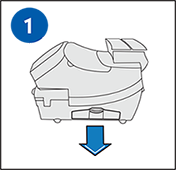
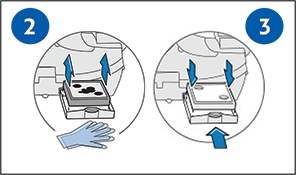
- Check how saturated the waste foam is. If it contains less than 50% ink, flip the waste foam 180 degrees so the clean (white) side faces upwards. If it contains more than 50% ink, leave it in place — you can clear the message to continue franking, but you will need to contact Technical Support to order a replacement waste foam.
- Replace the ink tray into the machine.
- Select Options.
- Press Page Down twice.
- Select Advanced Features.
- Select Maintenance Mode.
- Select Printer Maintenance.
- Press Page Down.
- Select Reset Waste Tank.
- Press Yes/Enter when Reset the Waste Ink Tank flag appears.
- Enter the code 9287.
- Select Continue.
- Select Press to Restart when Waste Ink Tank Flag is Reset appears.
- Wait a few minutes while the machine initialises. You will return to the Home screen.
How do I check and turn the waste pad on the DM110i, DM160i or DM220i?
- Pull out the tray on the right-hand side of the machine towards the back.
- Inspect the pad to see if it is saturated.
- If the opposite corner is clean, the pad can be turned and reinserted.
- If you have been sent a new pad, remove the inner tray and replace the pad.
- Once done, push the tray back into place.
DM110i / DM160i / DM220i Waste Tank – Frequently Asked Questions
What does “Waste Tank Full” mean on the DM110i, DM160i or DM220i?
It means the ink waste foam has accumulated enough ink from printhead cleaning cycles that the machine may stop printing. Remove the right-side ink tray, check the foam saturation and either flip it or replace it, then reset the waste tank counter using code 9287.
What is the reset code for the waste tank on the DM110i, DM160i or DM220i?
The waste tank reset code is 9287. Enter it at Options > Page Down twice > Advanced Features > Maintenance Mode > Printer Maintenance > Page Down > Reset Waste Tank.
How do I know if the waste pad needs replacing on the DM110i?
Pull out the right-side tray and inspect the pad. If more than 50% of the foam is saturated with ink, it needs replacing. Contact Technical Support to order a replacement.
Still having waste tank issues with your DM110i, DM160i or DM220i?
Our technical team are Royal Mail Authorised Inspectors and fully qualified franking machine engineers. Call us on 01543 572 776 – Mon–Fri 9:00 to 17:00.