✓ Royal Mail Authorised Inspector since 2008 | Trading since 2005


Envelope Printing Support
Pitney Bowes SendPro C Auto / Auto+ · Envelope Printing
How to use Envelope Printing on the Pitney Bowes SendPro C Auto and SendPro C Auto+ to print postage, enter weight, select accounts and graphics, print a future date, date-and-time or graphic-only impressions, and print funds and piece-count reports.
⚡ Save on supplies
Franking machine ink, labels & supplies
Genuine Mailcoms, Royal Mail approved ink, labels and supplies for your franking machine - quality you can trust at Mailcoms prices. Free UK delivery on orders over £40.
What can I do on the Envelope Printing screen of the SendPro C Auto / Auto+?
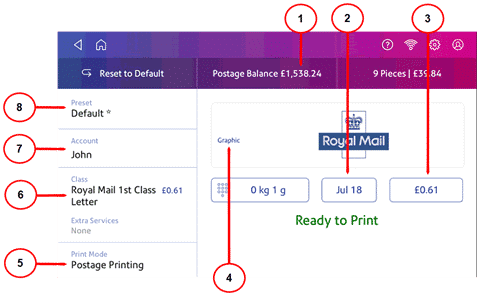
The Envelope Printing screen is the starting point for printing postage on an envelope or tape. From it you can:
- View your Postage Balance and total postage amount.
- Tap the Date to change the print date.
- Tap Graphic to preview, add or change a graphic, or add a custom text message.
- Tap Print Mode to print a graphic only, the date and time only, or to seal without printing.
- Tap Class to choose a postal class and extra services.
- Tap Account to charge back postage and run reports.
- Tap Preset to store and recall common settings.
How do I print postage on an envelope on the SendPro C Auto / Auto+?
To print postage, open Envelope Printing, select your class and weigh the item, then feed the envelope through.
- Tap Envelope Printing on the Home screen.
- Tap Class, tap Start Over if needed, select the class, item type and any special services, then tap Apply.
- Weigh the item (place it on the scale, or tap the weight icon to enter it manually).
- Add a graphic or account if required.
- When the machine shows ready to print, feed the envelope or label through (or tap Start, depending on your model).
How do I enter weight manually on the SendPro C Auto / Auto+?
Use this when you know the weight and are not using the weighing platform.
- Tap Envelope Printing, then the weight button.
- Tap Manual, tap the kg option and enter the kilograms, then the grams option and enter the grams.
- Tap Apply.
- Tap Class, select the class, type and any services, then tap Apply and feed the envelope through.
How do I select an account for Envelope Printing on the SendPro C Auto / Auto+?
When accounting is enabled you must select an account before printing postage.
- Tap Envelope Printing, then Account.
- Tap the account you wish to use.
Tip: For creating, editing and reporting on accounts, see our SendPro C Auto / Auto+ Accounts Support guide.
How do I add or change a graphic in Envelope Printing on the SendPro C Auto / Auto+?
The machine includes standard graphics (such as PLEASE OPEN IMMEDIATELY, RECYCLE and Season’s Greetings), and you can add your own. Weigh the envelope and select a class first.
- Tap the Graphics icon on the Envelope Printing screen.
- Select the graphic you want and tap Apply.
- Feed the envelope through to verify it prints correctly.
Tip: To download new logos or add a custom text return address, see our SendPro C Auto / Auto+ Envelope Messaging Support guide.
How do I add a custom text message in Envelope Printing on the SendPro C Auto / Auto+?
You can add a custom text message (such as a return address) of up to five lines of 20 characters, printed on the left of the impression.
- Tap Envelope Printing, weigh your envelope and select a class.
- Tap Graphic, then Custom Text, then + Add.
- Tap Accept & Continue, name the message and tap Save.
- Enter the message and tap Apply twice.
How do I print a future date on the SendPro C Auto / Auto+?
Print postage with a future date if you miss today’s mail pickup.
- Tap Envelope Printing, then tap the date to open the calendar.
- Tap Tomorrow or another date.
- Tap Apply, then feed your envelope.
Note: The printed date should match the date your mail goes to the Post Office. The machine automatically advances the date at 5:00 PM, and this time cannot be changed.
How do I print only the date and time on the SendPro C Auto / Auto+?
- Tap Envelope Printing, then Print Mode (scroll down if needed).
- Select Date and Time Stamp and tap Apply.
- Feed the envelope through the machine.
How do I print a graphic only with no postage on the SendPro C Auto / Auto+?
- Tap Envelope Printing, then Print Mode.
- Select Graphic Only and tap Apply.
- Tap the Graphics button, select your graphic and tap Apply.
- Print the graphic on the envelope or tape sheet.
How do I refill postage and check my balance on the SendPro C Auto / Auto+?
To refill, tap Envelope Printing > Postage Balance > Refill Postage, enter the amount and tap Refill Mail Postage. Your available balance is shown on the Postage Balance button at the top of the Envelope Printing screen.
Tip: For default refill amounts, low funds warnings, refill history and funding methods, see our SendPro C Auto / Auto+ Postage Support guide.
How do I print a funds report on the SendPro C Auto / Auto+?
The funds report shows the funds used and available, total pieces, control sum, batch count and value, and the PBI serial number.
- Tap Envelope Printing on the Home screen.
- Tap the piece count in the upper right.
- Tap Print Report, then Envelope Printer.
- Feed an envelope through the machine.
How do I print a report for the number of mail pieces sent on the SendPro C Auto / Auto+?
- Tap Envelope Printing on the Home screen.
- Tap the Pieces button.
- Tap Print Report, then Envelope Printer.
- Feed the envelope through the machine — a funds report prints showing the total pieces sent.
SendPro C Auto / Auto+ Envelope Printing – Frequently Asked Questions
How do I print postage on the SendPro C Auto / Auto+?
Tap Envelope Printing, select your class and services, weigh the item, then feed the envelope or label through when the machine shows ready to print.
How do I print a graphic without postage?
Tap Envelope Printing > Print Mode > Graphic Only > Apply, then tap Graphics, choose your graphic and print it on the envelope or tape.
How do I print with a future date?
Tap the date on the Envelope Printing screen, choose Tomorrow or another date and tap Apply. The machine advances the date automatically at 5pm.
Still having trouble with Envelope Printing?
Our technical team are Royal Mail Authorised Inspectors and fully qualified franking machine engineers. Call us on 01543 572 776 – Mon–Fri 9:00 to 17:00.