✓ Royal Mail Authorised Inspector since 2008 | Trading since 2005


SendPro C Auto/Auto+ Scales Support
Pitney Bowes SendPro C Auto / Auto+ · Scales
How to install, zero, reset, replace and troubleshoot the scale on the Pitney Bowes SendPro C Auto and SendPro C Auto+ franking machine, including entering weight manually, using an external scale and scale stabilisation.
How do I install a scale on the SendPro C Auto / Auto+?
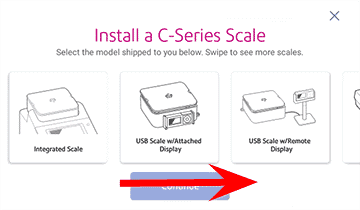
To install a scale, open the Scale Installation Guides in Settings and follow the on-screen steps for your scale.
- Tap the Settings (gear) icon in the global toolbar.
- Scroll to the bottom and tap Scale Installation Guides under Advanced Options.
- Swipe left to view all available scales.
- Tap to select your scale, then tap Continue.
- Follow the on-screen instructions, swiping left to advance each step.
How do I zero the scale on the SendPro C Auto / Auto+?
To zero the scale, open the weight box in Envelope Printing and select Zero scale.
- From the Home screen, select Envelope Printing.
- Tap into the scale box where the weight is showing.
- Tap the Scale option.
- Tap Zero scale, then Cancel. The scale is now set to zero and ready for an item.
How do I reset the scale on the SendPro C Auto / Auto+?
To reset the scale, zero it from the weight box in Envelope Printing.
- From the Home screen, select Envelope Printing.
- Tap into the scale box where the weight is showing.
- Tap the Scale option, then Zero scale, then Cancel. The scale is reset to zero and ready for an item.
How do I replace the scale on the SendPro C Auto / Auto+?
To replace the scale, remove the old unit, unpack the new one (removing all foam), and fit it onto the machine.
- Remove the old scale unit from the machine.
- Open the new scale box and remove all foam, including the pink piece in the middle.
- Place the grey plate back onto the scale once the foam is removed.
- Place the new scale onto the machine, making sure the connector sits down correctly.
How do I fix scale issues on the SendPro C Auto / Auto+?
To fix scale issues, re-seat the scale and test it with a known item.
- Remove the scale.
- Place it back on securely.
- Add an item to the scale to test it is working.
How do I enter weight manually for Envelope Printing on the SendPro C Auto / Auto+?
Use this when you know the weight and are not using the integrated weighing platform.
- Tap Envelope Printing on the Home screen.
- Tap the weight button, then Manual.
- Tap the kg option and enter the kilograms, then the grams option and enter the grams.
- Tap Apply.
- Tap Class (select Start Over if needed), select the class, package/envelope type and any special services, then tap Apply.
- Feed the envelope through the machine.
How do I use the weighing platform for Envelope Printing on the SendPro C Auto / Auto+?
Use the platform to weigh your mail piece and calculate the postage automatically.
- Tap Envelope Printing on the Home screen.
- Tap the weight button, then Scale.
- Place the envelope on the weighing platform (you must do this before the next step, or Apply stays inactive).
- Tap Apply.
- Tap Class, select the class and any special services, then tap Apply.
- Place the envelope(s) on the feed deck and feed them manually or tap Start, depending on your model.
How do I install an external scale on the SendPro C Auto / Auto+?
An external scale is useful for high volumes of parcels and packages. To install one, fit the blanking plate, run the Scale Installation Guide and connect the scale by USB.
- If using the scale on top of the device, lift it off to remove it.
- Fit the blanking plate where the scale was located.
- Tap Settings in the toolbar, scroll down and tap Scale Installation Guides.
- Swipe left, select the scale you are installing and tap Continue.
- Follow the on-screen steps to unbox the scale, then position and level it — adjust the round feet until the level bubble sits inside the circle.
- Connect the large end of the USB cable to the device and the other end to the scale.
- Tap Continue, then Verify, then Got It.
- Tap Envelope Printing, tap the Weight icon, then Scale, place mail on the scale and tap Apply.
How do I use Scale Stabilisation on the SendPro C Auto / Auto+?
If your device is near an air-conditioning unit, fan, draught or an unstable surface, enable Scale Stabilization for more accurate readings.
- Tap the Settings (gear) icon in the global toolbar.
- Scroll to the Advanced Device Options section.
- Tap Scale Stabilization, then Enhanced.
- Tap the back arrow to return to the Home screen.
How do I adjust the scale location code on the SendPro C Auto / Auto+?
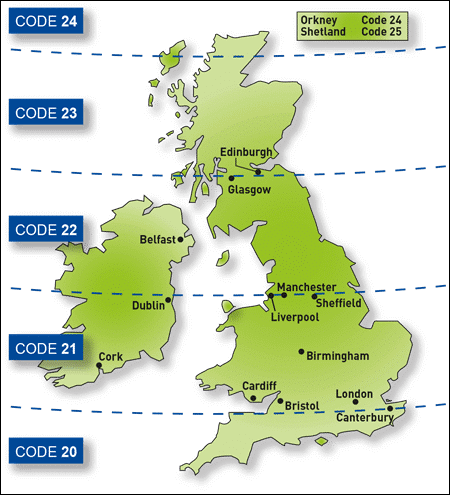
When you move the device to a new region or install a new scale, check the scale location code.
- Tap the Settings (gear) icon in the global toolbar.
- Tap Location & Time Zone.
- Check the location code is correct.
- Tap Apply to confirm.
SendPro C Auto / Auto+ Scales – Frequently Asked Questions
How do I zero the scale on the SendPro C Auto / Auto+?
In Envelope Printing, tap the scale box showing the weight, tap Scale, then Zero scale and Cancel. The scale resets to zero ready for an item.
Why is my SendPro C scale weighing inaccurately?
Re-seat the scale and test with a known item. If the device is near a fan, draught or unstable surface, enable Scale Stabilization (Enhanced) in Settings.
Can I use an external scale with the SendPro C Auto / Auto+?
Yes. Lift off the top scale, fit the blanking plate, run the Scale Installation Guide, level the external scale and connect it by USB.
Still having scale problems with your SendPro C Auto / Auto+?
Our technical team are Royal Mail Authorised Inspectors and fully qualified franking machine engineers. Call us on 01543 572 776 – Mon–Fri 9:00 to 17:00.