✓ Royal Mail Authorised Inspector since 2008 | Trading since 2005


Mailbase Connection Support
Mailcoms Mailbase · Connection
How to connect the Mailcoms Mailbase – rebooting a comms device or dongle, setting up a wired LAN connection, PC Meter Connect, and fixing LAN and DE connection errors.
How do I reboot a comms device with no internet on the Mailbase?
- Remove the power cable from the device.
- Once the lights go out, reinsert the power cable.
- Wait for the green light to appear.
- Try to reconnect the machine.
How do I reboot a dongle with no internet on the Mailbase?
- Remove the power cable from the back of the machine.
- Remove the USB adapter (dongle) from the back of the machine.
- Check the LAN cable and the USB on the dongle are secure.
- Plug the dongle back into either USB socket on the back of the machine.
- Plug the power lead back in and let the machine initialise.
- Check the dongle lights – a static 100 light and a flashing ACT light.
- Try connecting the machine again.
How do I set up a wired LAN connection on the Mailbase?
Connect the supplied USB LAN adapter, then set the machine to get an IP address.
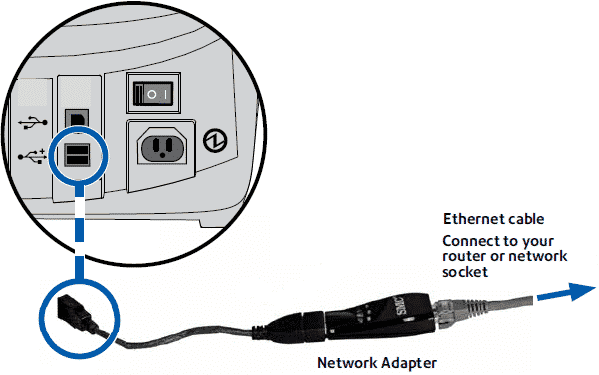
- Turn the power off using the switch on the back of the machine.
- Connect the Ethernet cable into the USB LAN adapter and into your wall outlet or router.
- Plug the USB LAN adapter into the USB port, then turn the power back on.
- Press Options, Page Down twice, and select Connect Data Centre.
- Select LAN Settings, then Get IP.
- Select Automatically for a dynamic IP, or Manually for a static IP (ask your IT department for the address).
- Press Home, then press Add Postage and Check PBP Balance to confirm the connection – press No when prompted to add postage.
How do I fix LAN connection problems on the Mailbase?
LAN problems are usually the settings, the physical connection or a firewall. First restart the meter (switch off, wait one to three minutes, switch on and retry a balance enquiry). If that does not help:
- Physical connection: check the green 10 or 100 LED on the USB-to-Ethernet adapter is lit within a minute. If not, reseat the LAN cable and adapter, try the other USB port, try a different cable, and make sure the meter is not also on a phone line or PC Meter Connect.
- LAN settings: Options → Page Down twice → Connect-Data Centre → LAN Settings → Get IP → Automatically (DHCP), then reboot.
- Static IP: as above, choose Manually and enter the IP, Subnet and Gateway from your IT department, then reboot.
- Proxy: LAN Settings → Page Down → Proxy to enable and set HTTP/HTTPS address, port and credentials.
- DNS: Connect-Data Centre → Distributor Values → Page Down → Primary or Secondary DNS server (press 1 four times for a decimal point), then Set the New Value.
- Firewall: make sure your firewall meets the requirements in the LAN connectivity guide.
How do I connect via PC Meter Connect on the Mailbase?
PC Meter Connect lets the machine connect through a Windows PC and USB instead of a phone line. The PC needs Windows (2000 to 7, 32 or 64-bit; Mac and Linux are not supported), a 1.2GHz processor, 512MB RAM, a USB port, admin rights, Microsoft .NET 2.0 and an internet connection.
- Download and run the PC Meter Connect installer from our PC Meter Connect support page.
- Choose your language and follow the on-screen steps to install.
- Connect the machine to the PC by USB and open PC Meter Connect.
How do I fix DE errors, No Dial Tone or Connection Lost on the Mailbase?
These mostly relate to PC Meter Connect or the postage server:
- No Dial Tone: the machine is not detecting the PC. Reboot the machine, check the USB at both ends, try a different USB port, make sure PC Meter Connect is open, and reinstall it if needed.
- DE00 / DE01 / DE04 / DE014 / DE015: try connecting in the morning, reboot the machine and PC, then in PC Meter Connect Internet Settings change Non-Chunked to Chunked and Passive FTP to Active. Reinstall PC Meter Connect if it still fails.
- Connection Lost: a server-side issue – keep trying, and contact us if it lasts over two hours.
- PC Meter Connect running in proxy-only mode: follow the same Chunked / Active FTP steps as the DE errors.
Mailbase Connection – Frequently Asked Questions
Why won’t my Mailbase connect to the Data Centre?
Most failures are network related. Reboot the comms device or dongle, check the cables, set the LAN to get an IP automatically, and try again.
How do I set up a wired connection on the Mailbase?
Connect the USB LAN adapter and Ethernet cable, then under Connect Data Centre, LAN Settings, Get IP, choose Automatically.
What do I do about a DE error on the Mailbase?
Connect at a quieter time, reboot the machine and PC, and in PC Meter Connect switch Non-Chunked to Chunked and Passive FTP to Active.
Does the Mailbase need a phone line?
No. It connects by LAN or through a PC with PC Meter Connect. Do not connect a phone line and PC Meter Connect at the same time as LAN.
Still having connection problems with your Mailbase?
Our technical team are Royal Mail Authorised Inspectors and fully qualified franking machine engineers. Call us on 01543 572 776 – Mon–Fri 9:00 to 17:00.